
Imagine never having to manually track your expenses again—sounds like a dream, doesn’t it? With a Google Sheets bot, this can be a reality, transforming the way you manage your finances effortlessly.
What Is a Google Sheets Bot?
A Google Sheets bot is essentially an automated script or a set of scripts designed to perform specific tasks within Google Sheets without your intervention. These bots can be incredibly versatile, allowing you to automate a wide range of tasks, from simple to complex. In the context of tracking expenses, a Google Sheets bot can automatically pull in data from your bank transactions, categorize them, and even provide insightful summaries.
These bots leverage Google Apps Script, a powerful scripting language based on JavaScript, to interact with your Google Sheets. They can be set to run on a schedule or trigger based on certain events, such as when new data is added to a sheet.
How It Works
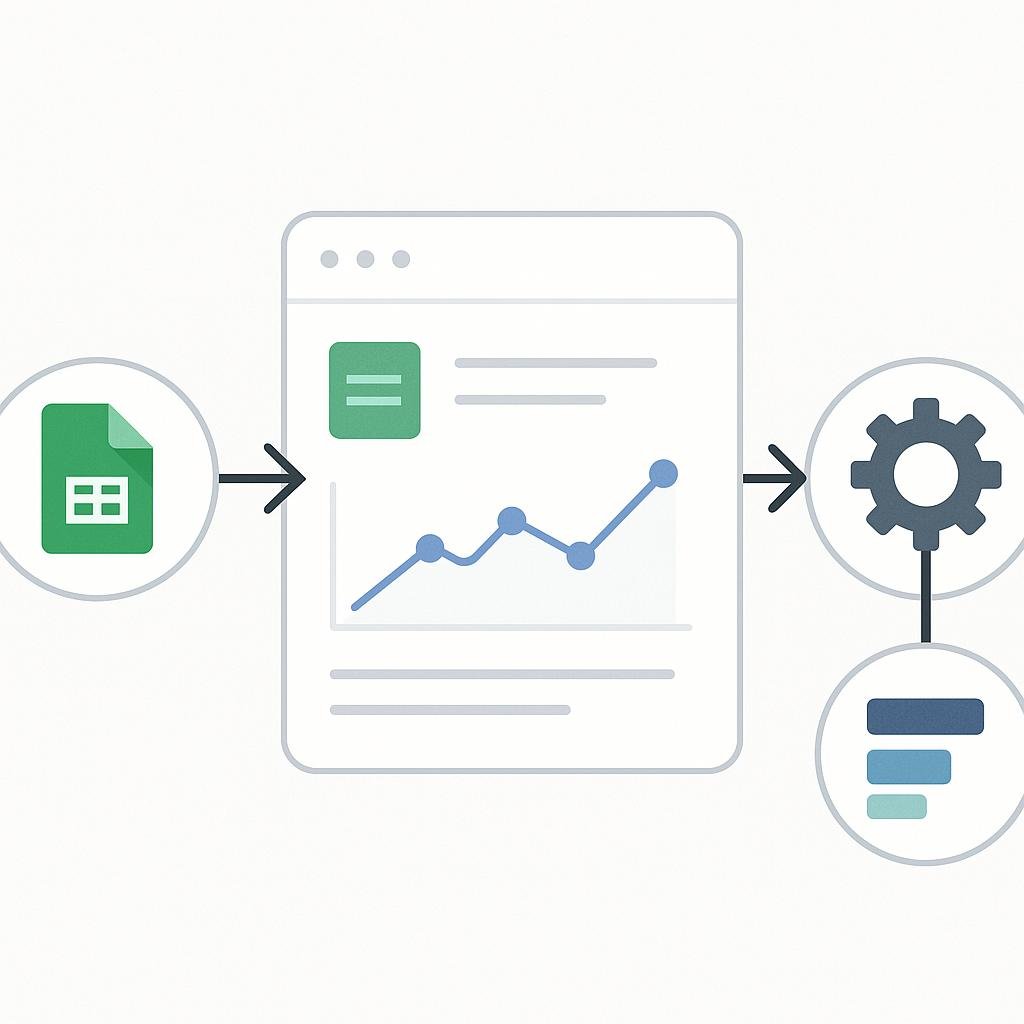
Creating a Google Sheets bot to track expenses involves a few key components. Here’s a breakdown of how it works:
- Data Source: The first step is identifying where your financial data is coming from. This could be your bank account, credit card statements, or even receipts. Many banks offer CSV downloads or API access, which can be integrated into Google Sheets.
- Google Sheets Setup: You need a structured Google Sheet to store and process this data. Typically, this involves creating columns for date, description, category, and amount.
- Google Apps Script: This is the backbone of your bot. A script is written to automate the import of data, categorize expenses, and even calculate totals or generate reports.
- Triggers: These are set up to run the script automatically at intervals or when specific events occur (like adding new data).
Step-by-Step Guide
Let’s dive into a practical step-by-step guide on setting up your Google Sheets bot to track expenses automatically.
Step 1: Prepare Your Google Sheet
Start by setting up a Google Sheet with the necessary columns: Date, Description, Amount, and Category. You can add additional columns based on your specific needs, such as Payment Method or Vendor.
- Open Google Sheets and create a new spreadsheet.
- Label the columns in the first row. For example: Date, Description, Amount, Category.
- Decide on a naming convention that works for you and stick to it.
Step 2: Import Data Automatically
Next, you’ll need to set up a method to import your financial data into Google Sheets. This can be done manually by downloading CSV files from your bank or automatically via an API if your bank supports it.
- If your bank allows API access, use a service like IFTTT or Zapier to connect the API to Google Sheets.
- For CSV files, use Google Sheets’ built-in import functions or a script to pull in the data regularly.
- Ensure the data maps correctly to your columns in the Google Sheet.
Step 3: Write the Google Apps Script
Here’s where you’ll create the script that automates categorization and calculations. Google Apps Script is powerful but requires some JavaScript knowledge. Here’s a basic outline of what your script might do:
- Open the Google Sheets document.
- Write a script to read through each row and categorize expenses based on keywords in the description (e.g., “grocery” or “rent”).
- Calculate totals for each category and update a summary section within the sheet.
- Optionally, set up notifications for unusual expenses or trends.
function categorizeExpenses() {

  var sheet = SpreadsheetApp.getActiveSpreadsheet().getActiveSheet();

  var range = sheet.getDataRange();

  var values = range.getValues();
for (var i = 1; i < values.length; i++) { var description = values[i][1]; if (description.toLowerCase().includes("grocery")) { sheet.getRange(i + 1, 4).setValue("Grocery"); } else if (description.toLowerCase().includes("rent")) { sheet.getRange(i + 1, 4).setValue("Rent"); } // Add more categories as needed } }
Step 4: Automate the Process
Now, you'll set up triggers to automate the running of your script.
- Go to the Google Apps Script editor.
- Click on the clock icon to create a new trigger.
- Set the trigger to run daily, weekly, or monthly, depending on how often you want your data updated.
- Choose the function you wrote (e.g.,
categorizeExpenses) and save the trigger.
Common Mistakes to Avoid
Setting up a Google Sheets bot can be straightforward, but there are common pitfalls to watch out for:
- Incorrect Data Mapping: Ensure that the data imported into Google Sheets matches the columns you've set up. Mismatched data can lead to errors in categorization and calculations.
- Overcomplicating Scripts: Start with a simple script and gradually add complexity. Overloading your script with too many functions at once can make debugging difficult.
- Ignoring Security: Be cautious with sensitive financial data. Ensure your sheet's privacy settings are secure and avoid sharing it with unknown users.
- Neglecting Updates: Regularly update your script to accommodate changes in your financial habits or banking data structure.
Real-World Examples
Here are a few real-world scenarios where a Google Sheets bot can be invaluable:
Example 1: Budgeting for a Family
A family of four uses a Google Sheets bot to track monthly expenses. Each family member's transactions are imported and categorized, providing an overview of spending habits. The bot sends a monthly summary email to all family members, highlighting areas where they stayed under or exceeded the budget.
Example 2: Small Business Expense Tracking
A small business owner uses a Google Sheets bot to manage business expenses. The bot categorizes expenses into business travel, supplies, and utilities, creating quarterly reports for tax purposes. This automation saves the owner hours of manual data entry and reduces errors.
Example 3: Personal Expense Management
An individual uses a Google Sheets bot to track personal expenses, automatically categorizing them into entertainment, dining, and savings. The bot highlights spending trends, helping the individual adjust their budget to meet savings goals.
Final Thoughts
Automating your expense tracking with a Google Sheets bot can transform how you manage finances, offering convenience, accuracy, and insights that manual tracking simply can't match. While setting up a bot requires initial effort and some technical know-how, the long-term benefits are worth it. Whether you're managing a household, running a business, or simply looking to improve your personal finance habits, a Google Sheets bot can be your silent, efficient partner in achieving financial clarity.