
Is your computer feeling sluggish, like it’s trudging through digital molasses? You’re not alone, and it often boils down to two key components: RAM and storage. Understanding these components is crucial to diagnosing and fixing performance issues that lead to frustration during everyday tasks.
What Is RAM?
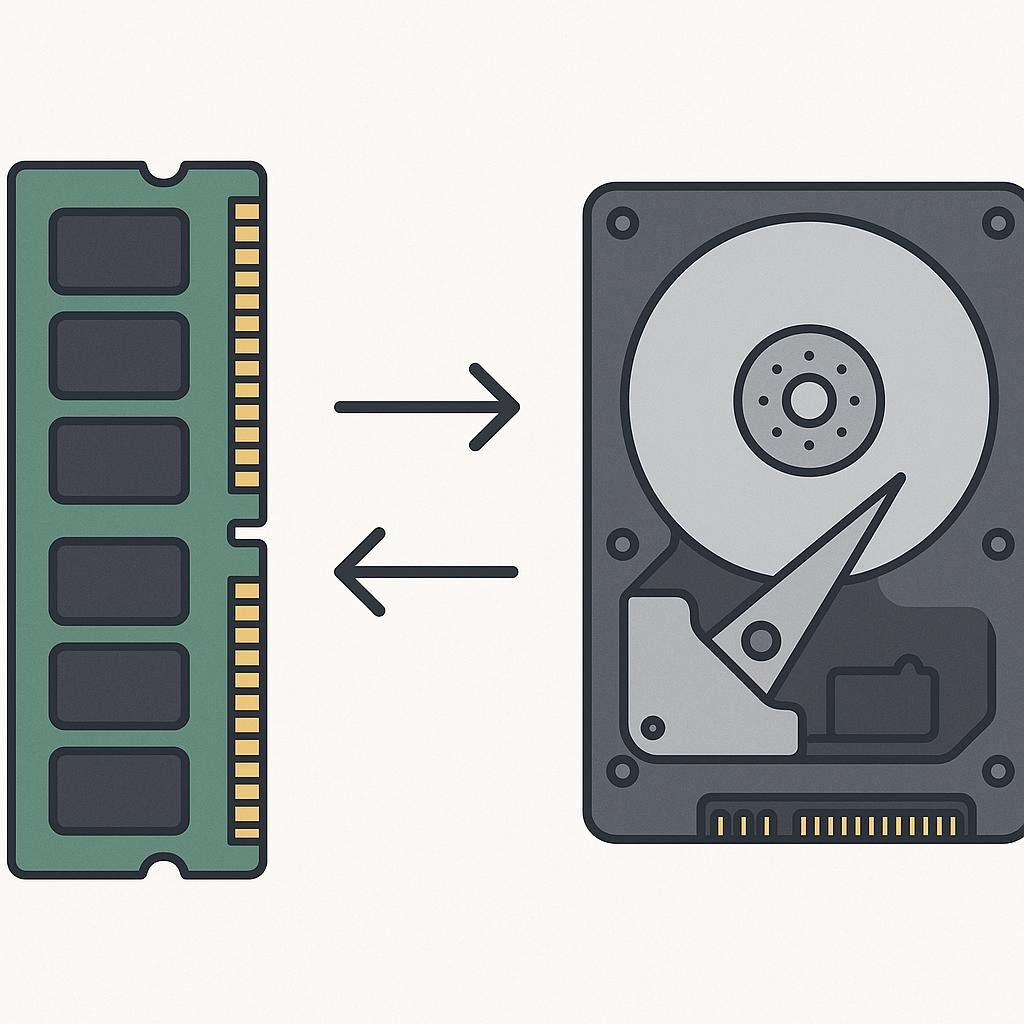
Random Access Memory (RAM) is essentially your computer’s short-term memory. It’s where your system stores data that is actively being used or processed. Imagine RAM as a workbench. The larger your workbench, the more tools and materials you can have readily available to tackle various projects simultaneously. When you open a program, your computer loads the necessary data into RAM so it can be accessed quickly. The more RAM you have, the more programs you can run at once without experiencing a slowdown.
What Is Storage?
Storage, on the other hand, is your computer’s long-term memory. This is where your computer saves all your files, applications, and the operating system itself. Storage is like a filing cabinet. It keeps everything you need for the future, but accessing information from here takes a bit longer compared to RAM. There are two main types of storage: Hard Disk Drives (HDDs) and Solid State Drives (SSDs). HDDs are older, mechanical, and generally slower, while SSDs are faster and more reliable due to their lack of moving parts.
How It Works
Understanding how RAM and storage work together can help you pinpoint what might be slowing down your computer.
- RAM: When you start a program, your computer loads it from storage into RAM. If you have limited RAM, your operating system might have to swap data between RAM and storage frequently, which can slow down performance.
- Storage: If your storage drive is near capacity, it can affect your computer’s ability to perform efficiently. This is especially true for HDDs which need to continually rearrange data to keep things running smoothly.
- Virtual Memory: When you run out of RAM, your computer uses a portion of your storage as “virtual memory.” This process is much slower than accessing data from RAM and can significantly affect performance.
Step-by-Step Guide to Diagnose and Improve Performance
If your computer is slow, follow these steps to diagnose and potentially improve its performance:
- Check RAM Usage: Open Task Manager (Ctrl + Shift + Esc on Windows or Activity Monitor on macOS) and look at the memory usage. If your RAM usage is consistently high, you might need to upgrade your RAM.
- Assess Storage Space: Check how much storage space is left on your drive. If you have less than 15-20% free space, consider cleaning up files or upgrading your storage.
- Upgrade to SSD: If you’re still using an HDD, upgrading to an SSD can dramatically improve boot times and overall speed.
- Optimize Startup Programs: Disable unnecessary programs that start on boot. This can free up resources and speed up your system.
- Regular Maintenance: Regularly defragment your HDD (not necessary for SSDs) and clean up temporary files to keep your system running smoothly.
Common Mistakes to Avoid
In your quest to speed up your computer, avoid these common pitfalls:
- Ignoring the Real Issue: Sometimes, the problem isn’t RAM or storage but rather malware or outdated software. Ensure your system is clean and up-to-date.
- Overloading with Software: Resist the urge to download every shiny new app. Keep only what you truly need to reduce resource consumption.
- Misunderstanding RAM vs Storage: Don’t confuse these components. More storage won’t help if your RAM is maxed out and vice versa.
Real-World Examples
Let’s explore some real-world scenarios where understanding RAM vs storage can help:
Scenario 1: The Multitasker
Jane loves to multitask, often running multiple programs such as Photoshop, a web browser with numerous tabs, and a music player simultaneously. Her computer slows down significantly during these sessions. The problem? Insufficient RAM. By upgrading her RAM, Jane can keep more applications open and active without impacting performance.
Scenario 2: The Data Hoarder
John has a vast collection of movies and games stored on his computer. He notices his system takes forever to boot and load programs. His issue is a lack of storage space. By cleaning up his hard drive or upgrading to a larger SSD, John can enjoy faster boot times and smoother performance.
Scenario 3: The Budget Gamer
Alex loves gaming but is frustrated with long load times and lag. He’s currently using a traditional HDD. By switching to an SSD, Alex experiences faster game load times and an overall more responsive system, even without upgrading his RAM.
Final Thoughts
Understanding the distinction between RAM and storage is crucial for diagnosing and resolving performance issues on your computer. RAM allows you to run multiple applications smoothly, while storage ensures you have enough space for your data and applications. By analyzing your usage patterns and the demands you place on your computer, you can make informed decisions about upgrades and maintenance. Whether it’s adding more RAM, switching to an SSD, or simply cleaning up your storage, these actions can significantly enhance your computing experience. Remember, a balanced approach tailored to your specific needs is key to optimal performance.